Which NVR for Home Assistant? Frigate, Scrypted, Agent DVR and camera.ui compared
Updated November 2026
Home Assistant shows your cameras live, but it isn't built to record around the clock. There's no timeline to scroll back through, and it can't tell whether a person stood at the door or the neighbor's cat walked by. For that you need an NVR. Four of them run as a Home Assistant app: Frigate, Scrypted, Agent DVR and camera.ui. Here's how they compare in Home Assistant, from the integration to the price.
camera.ui is our own product, so keep that in mind while reading. What we say about the other three comes from their own docs and repositories, linked below, as of November 2026.
App or integration: the part that confuses everyone
Most NVRs come into Home Assistant twice. The app, formerly called add-on, runs the NVR itself on your Home Assistant machine. The integration turns its cameras and sensors into entities you can put on a dashboard or use in automations.
You need the integration either way. The app is optional. If the NVR already runs on a NAS or a mini PC in the closet, skip the app and point the integration at that machine. For recording, that is often the better setup anyway. Video fills disks quickly, and Home Assistant OS takes network storage for media but no second local disk. Scrypted's docs advise against Home Assistant OS for its NVR for exactly this reason.
All four apps run on amd64 and aarch64, so on a mini PC as well as on a Raspberry Pi 4 or 5. Looking for the recorder box your camera maker sells? Home Assistant has integrations for some of those too, Reolink's for example. This guide is about NVR software.
Home Assistant NVR comparison
| Feature | camera.ui | Frigate | Scrypted | Agent DVR |
|---|---|---|---|---|
| Integration | Custom | Custom | Custom | Built into Home Assistant |
| MQTT broker needed | No | Yes | No | For sensors |
| Live video in Home Assistant | Yes | Yes | In the NVR cards | Yes, as MJPEG |
| Motion and object sensors | Yes, by push | Yes, over MQTT | Yes, by push | Over MQTT |
| Recordings in the media browser | Yes | Yes | NVR clips | As files, with the app |
| Dashboard cards | Three, included | Advanced Camera Card, separate | With Scrypted NVR | Home Assistant's own |
| Object detection | Free | Free | With Scrypted NVR | Free with your own AI server |
| Face and plate recognition | Plates free, faces with Pro | Free | With Scrypted NVR | Free with your own AI server |
| HomeKit Secure Video | Yes | No | Yes | No |
| Phone apps | iOS, Android, Apple TV, in beta | Web app only | iOS, Android | iOS, Android, with subscription |
| Price | Free, Pro from $39/year | Free, Frigate+ $50/year optional | Free, NVR from $40/year | Free locally, subscription from $7.95/month |
Custom integrations install through the Marketplace, or through HACS on Home Assistant before 2026.11.
Frigate in Home Assistant
Frigate is the name most Home Assistant users hear first, and it earned that. It's open source, detection runs on your own hardware, and since version 0.16 it recognizes faces and reads license plates at no cost. Version 0.18 brought configuration in the browser, so the big YAML file is optional now. Frigate+ costs $50 a year and trains detection models on your own camera images. Nice to have, not required.
In Home Assistant, everything runs through MQTT. The integration only works with a broker, usually the Mosquitto app, and Frigate has to use the same one. The well-known dashboard card, the Advanced Camera Card (formerly Frigate Card), is a separate project you install on its own. Phone apps don't exist, you get the web interface, which you can add to your home screen. Details are in Frigate's Home Assistant docs.
Scrypted in Home Assistant
Scrypted made its name as the bridge that gets any camera into Apple Home, HomeKit Secure Video included, and it's still very good at that. Its integration comes from the developer as a custom repository, needs Home Assistant 2026.7 or newer and gets by without MQTT. Motion, doorbell presses and detections arrive by push.
How much you get in Home Assistant depends on Scrypted NVR, the paid part, from $40 a year. The camera entities only show snapshots. Live video comes through the NVR cards, and object detection, face and plate recognition and recording are NVR features too. Since Scrypted doesn't recommend Home Assistant OS for its NVR, plan a separate machine if you want to record. See Scrypted's Home Assistant docs.
Agent DVR in Home Assistant
Agent DVR takes the shortest route in. Its integration ships with Home Assistant itself, so you add it under Devices & services without any extra repository, and there's an official app now as well. The integration is fairly thin, though: cameras as MJPEG streams, an alarm panel to arm and disarm, and actions for snapshots and recording. Motion sensors and switches come over MQTT. If the Mosquitto app is installed, Agent DVR finds it and turns on discovery by itself.
Local use is free with unlimited cameras, with two catches. Without a license, live view and playback in the browser stop at 720p, and the built-in AI for people, faces and plates needs a license as well. Free detection works if you run your own AI server, CodeProject.AI for example. Remote access and the phone apps come with a subscription from $7.95 a month. More on iSpy's Home Assistant page.
camera.ui in Home Assistant
Now ours. The app runs the complete camera.ui server in Home Assistant OS and adds a panel to the sidebar. Whoever opens it is signed in with their Home Assistant user, so nobody needs a second password. The integration connects to any camera.ui server, in the app or on another machine, and needs no MQTT broker. Every camera becomes a device with a live camera entity, sensors for motion, people, vehicles, animals and packages, and PTZ controls if the camera can move. Events arrive by push, and device triggers such as "Object recognized" let you build an automation in a few clicks.
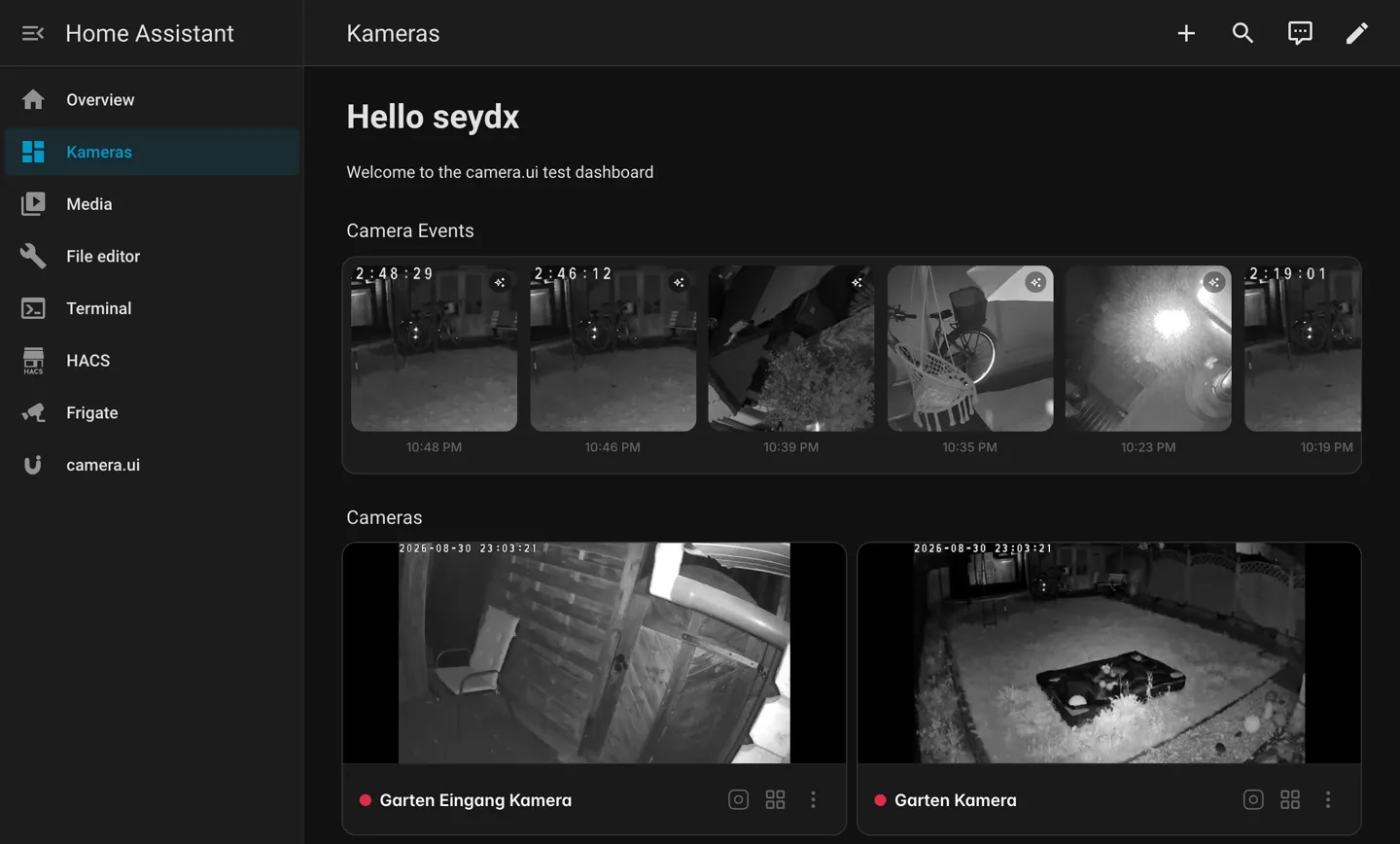
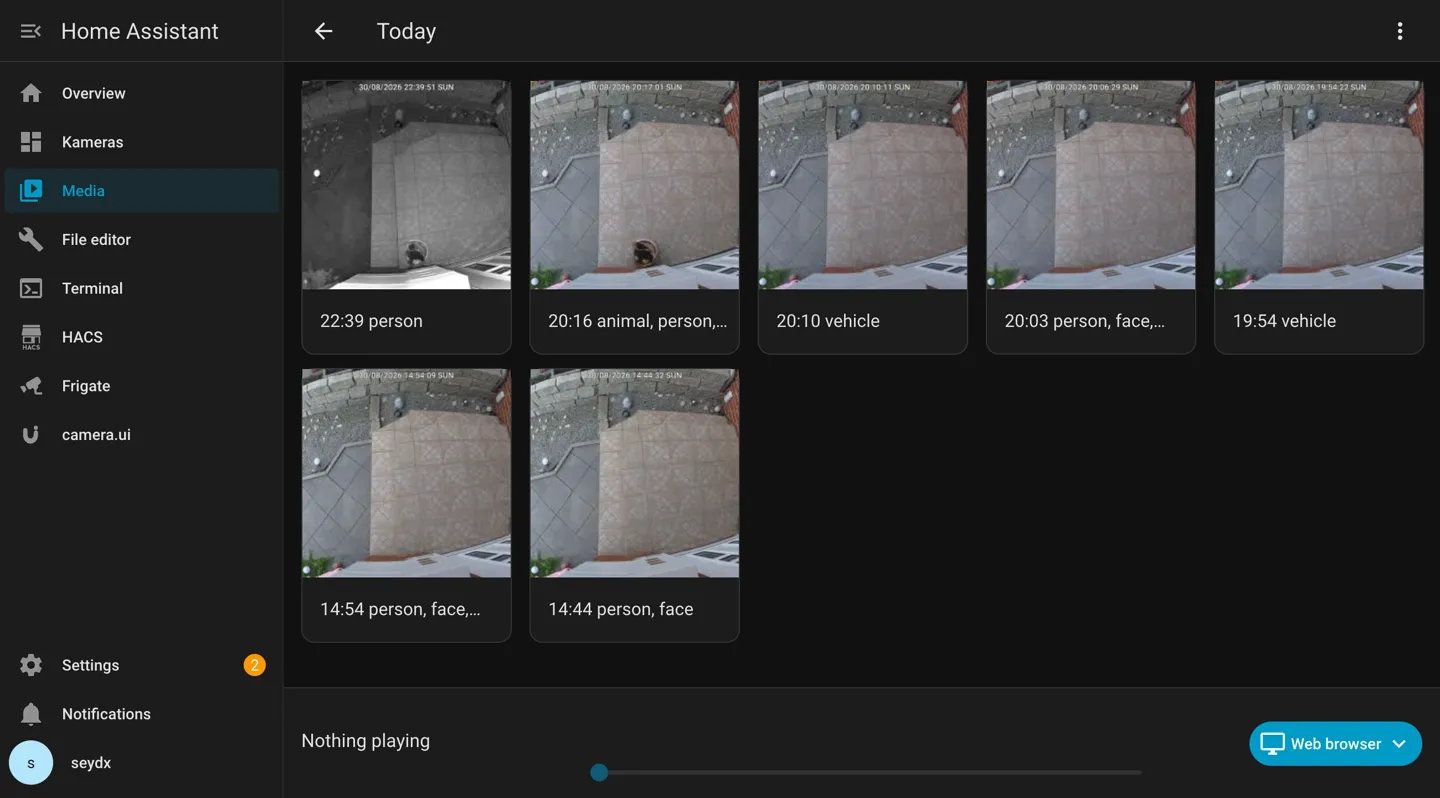
Three dashboard cards come with the integration: one camera, a saved camview with several cameras, and a strip of recent events. A click opens live view and timeline right inside Home Assistant. Recordings show up in the media browser, sorted by camera and day.
Built for everyday use
The biggest difference doesn't fit in a table. Many NVRs started as tools for people who enjoy configuring things, and you can see it in their interface. camera.ui started at the other end, with what you look at every day: the live picture, and the timeline when you want to know who rang. It should feel like the app of a camera system you bought, not like a server you maintain.
That goes for every screen. The same interface runs in the browser, in the desktop app, on iPhone, Android and Apple TV, and it is laid out for each of them instead of just getting smaller. On the phone the navigation sits at the bottom under your thumb, on the TV the remote gets you everywhere. Many details started as requests from the community.
You notice it in Home Assistant too: the sidebar panel is the full camera.ui interface, and the cards open the same live view and timeline. Whether we got it right is for you to judge, and your own cameras are the best test.
Live view, detection, sensors, the cards and HomeKit Secure Video are free. Recording with a timeline and face recognition come with Pro, from $39 a year. The downsides, to be fair: the integration is a custom repository and not part of Home Assistant itself, and the apps for iOS, Android and Apple TV are still in beta.
Which NVR is best for your Home Assistant?
No single one wins for everybody. Frigate is hard to beat if you already run Mosquitto and like to tinker: faces and plates cost nothing, and its community has an answer for almost any question. Does your household live in Apple Home? Then Scrypted and camera.ui are the two that bring HomeKit Secure Video to cameras without it. Agent DVR needs the fewest extras in Home Assistant, as long as you're fine with MQTT for the sensors and with paying for the built-in AI. And if you want live entities, sensors, cards and the media browser without any broker, that's what we built camera.ui for.
You don't have to decide blind. All four read the same RTSP streams, and most cameras allow a few connections at once, so you can run two side by side for a week and compare on your own cameras. Already using one of the others? Here's what changes when you switch from Frigate, Scrypted or Agent DVR.
Setting up camera.ui in Home Assistant
- Install the app In Home Assistant, open Settings → Apps → App Store, choose Repositories from the menu and add
https://github.com/cameraui/homeassistant-apps. Install camera.ui and start it. The first start downloads the server and takes a few minutes. Skip this step if camera.ui already runs on another machine. - Add the integration Open this link or add
https://github.com/cameraui/homeassistant-integrationunder Settings → Marketplace → Add from link. On Home Assistant before 2026.11 you add it in HACS instead. Restart Home Assistant afterwards. - Create an API token In camera.ui under Settings → Account → API tokens, from an admin account. With a viewer token the controls show up in Home Assistant, but camera.ui rejects them.
- Connect Home Assistant finds the server by itself and shows a "camera.ui found" card under Settings → Devices & services. Enter the token there. No card? Add the integration by hand with the host and port 3443.
- Add the cards Edit a dashboard and search the card picker for camera.ui.
Try it with your cameras
camera.ui runs on Mac, Windows and Linux, in Docker and as a Home Assistant app.
All logos and names are trademarks of their respective owners.