Most IP cameras don't support HomeKit, so the Home app won't add them. A bridge gets them in anyway, with HomeKit Secure Video and recordings in iCloud. Here's what you need and how to set it up with camera.ui. If your camera is already in Home but never records anything, jump straight to troubleshooting.
Why your camera is missing from Home
The Home app only adds cameras that speak Apple's HomeKit protocol. A few models are built for it. Most IP cameras speak RTSP and ONVIF instead, the standards that NVRs and recorders use, and Home has no way to add them.
A bridge sits in between. It runs on a computer in your home, reads the camera's stream and tells Home it is a HomeKit camera. Home believes it, and from then on you get live view, notifications and HomeKit Secure Video as with any certified camera. camera.ui is such a bridge. Scrypted does the same, and so does Homebridge with a camera plugin.
What HomeKit Secure Video needs
- A home hub An Apple TV or HomePod that stays at home, see Apple's setup guide. Without a hub there is no recording and no access from away.
- An iCloud+ plan It sets how many cameras record: one with 50 GB, up to five with 200 GB, any number from 2 TB. Recordings don't count against your storage.
- An iPhone or iPad You add the camera with it. Watching works on Mac and Apple TV too.
- A computer that stays on It runs the bridge. For camera.ui that can be a Mac, a Windows or Linux PC, a NAS with Docker, or Home Assistant. Already running Home Assistant? Here's how the NVRs for it compare.
The home hub analyzes the video and decides what gets recorded. Apple encrypts the clips end to end, and the Home app shows the last 10 days. More on Apple's HomeKit Secure Video page.
Setting it up with camera.ui
- Install camera.ui Put it on the computer that will run the bridge. The download page has the desktop app, Docker and the Home Assistant app.
- Add your cameras camera.ui finds ONVIF cameras on your network by itself, any other camera you add with its RTSP address. See Adding a camera.
- Install the HomeKit plugin Assign it to the cameras you want in Home, on the plugin's Cameras tab.
- Scan the QR code Each camera has its own QR code and PIN in its HomeKit settings. In the Home app, choose Add Accessory and scan the code.
- Choose when it records In the Home app, open the camera's settings and set the recording options, separately for when someone is home and when nobody is.
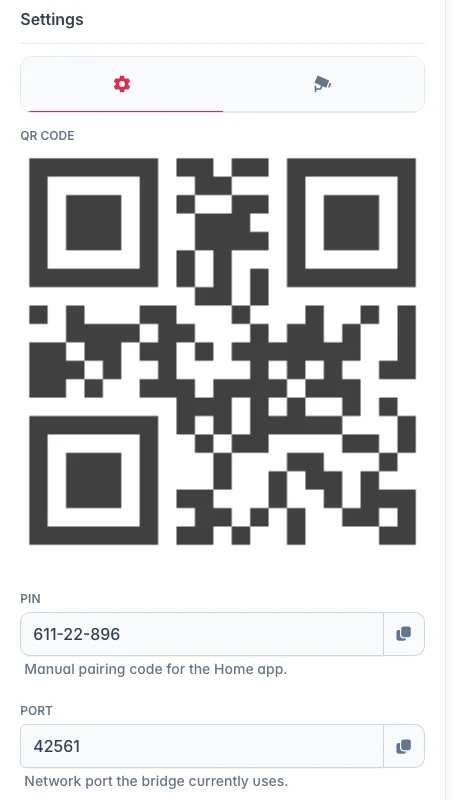
Pairing on the same device camera.ui is open on? Choose More options in the Home app and type the PIN instead.
When Home records
HomeKit Secure Video records on motion. Every camera that camera.ui brings into Home has a motion sensor, and camera.ui's own detection drives it. When camera.ui sees motion, Home gets the event, and the home hub keeps the clip if it matches your recording options: any motion, or only people, animals, vehicles or packages.
For a clip to include the seconds before an event, camera.ui has to keep the camera connected. Turn on hot mode for the camera's main stream. Without it, the recording starts when the event does.
A doorbell, battery or spotlight that belongs to the camera shows up on the same accessory in Home. If the camera has two-way audio, you can talk through it from the Home app.
H.265 cameras and iOS 27
Up to iOS 26, HomeKit only takes H.264. A camera that sends H.265 has to be transcoded, and for a 4K camera that costs about a CPU core.
iOS 27 brought newer Secure Video services from Apple that take H.265. camera.ui uses them for every camera whose main stream is H.265: live view at home and away, recording and two-way audio run on the camera's own stream, without transcoding. This needs iOS 27 or tvOS 27 on the home hub and on the devices you watch on. H.264 cameras stay on the classic services, where camera.ui sends the stream as it is whenever HomeKit can take it.
Is your home still on iOS 26? Turn on Force legacy path in the camera's HomeKit settings, and the stream is transcoded to H.264 as before.
When nothing gets recorded
- The home hub is offline The Home app lists your home hubs in the home settings and shows whether one is connected. Without a connected hub nothing is recorded.
- The plan is full With 50 GB one camera can record, with 200 GB five. Any camera beyond that only streams.
- The camera only streams Check the recording options in Home. They are set separately for home and away, so a camera may record only while nobody is home.
- The motion type doesn't match A camera that records only people leaves no clip when a car drives by.
- camera.ui sees no motion Home records when camera.ui reports motion. If the camera's events in camera.ui stay empty, check its detection settings and zones.
- Clips start too late Turn on hot mode for the main stream, see above.
- Clips break up Turn off Use Hardware Acceleration for HKSV in the camera's HomeKit settings.
- No picture over mobile data With an H.265 camera on iOS 27, Home switches to a smaller picture on slow connections such as LTE, and without one it shows none. Give the camera a second source in Low Resolution or Mid Resolution in camera.ui.
- Pairing is brokenReset Pairing in the camera's HomeKit settings creates a new code. Remove the camera from Home and add it again.
What it costs
The HomeKit plugin is part of the free camera.ui, HomeKit Secure Video included. The clips are stored in your iCloud, so the only plan you need is Apple's iCloud+. You don't need camera.ui's own recording for this.
Try it with your cameras
camera.ui runs on Mac, Windows and Linux, in Docker and as a Home Assistant app.
All logos and names are trademarks of their respective owners.